




Your iPhone comes out with new features faster than most people can keep up with—and some of those features are extremely useful to older adults. Some of these features make it easier to read or hear their phones, while others provide some form of safety or security.
However, your iPhone doesn’t come out of the box tailored to senior citizens. The initial settings are designed for a younger audience. To create a more senior-friendly iPhone, you need to manually change some of the settings.
Thankfully, these are simple modifications if you know the steps to take.
Allow me to help you transform your iPhone from something geared toward Gen Z to a tool more age-inclusive and accessible for older adults. Read on as I outline 10 useful iPhone tips for seniors.
Featured Financial Products
Senior-Friendly iPhone Advice
Whether you’re making adjustments for yourself or a loved one, you don’t need to be a tech expert to enable various handy features on your iPhone.
Let’s discuss some of the most practical tools for older iPhone users and each step to set them up.
1. Adjust Text Legibility
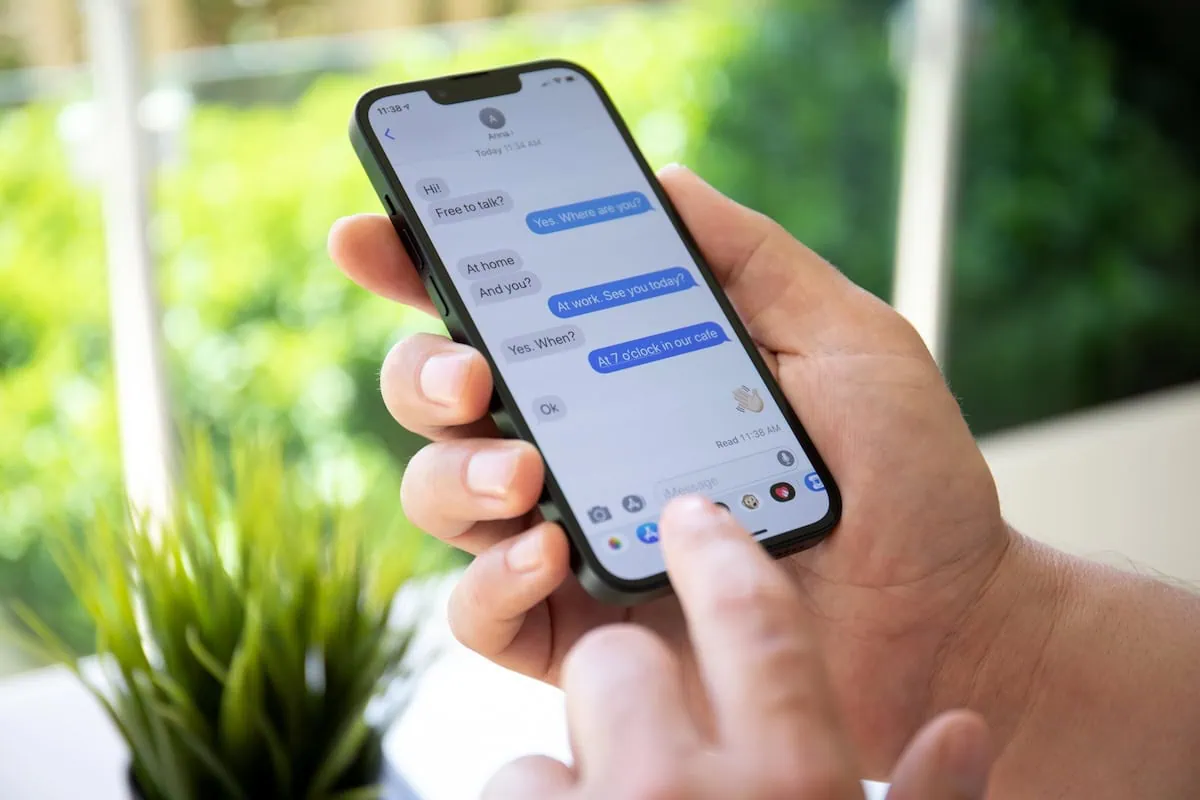
Do you need to pull out your reading glasses every time you read a text message? That’s fixable. You can make the text on your iPhone larger and bolder by doing the following:
- Open Settings.
- Scroll down and select Display & Brightness.
- To increase the text size, click Text Size. At the bottom, move the toggle to your desired text size.
- To make text bolder, simply toggle Bold Text to the On position (it will turn green when toggled on).
2. Have Text Read to You
Prefer not to read text on your screen at all? You can have your iPhone read to you instead. To make this change, follow these steps:
- Open Settings.
- Tap Accessibility.
- Tap VoiceOver.
- Toggle VoiceOver to the On position (it will turn green when toggled on). From there, it will offer you a tutorial.
- Optionally, within that screen, you can adjust the speaking rate to be faster or slower.
Related: How to Invest for (And in) Retirement: Strategies + Investment Options
3. Connect a Hearing Device

Perhaps you have excellent vision, but struggle with hearing. You can connect a compatible hearing aid to your iPhone to help. All you have to do is…
- Open Settings.
- Ensure Bluetooth is on. If it is not, tap Bluetooth.
- Toggle Bluetooth to the On position.
- Return to Settings.
- Tap Accessibility.
- Scroll down and select Hearing Devices.
- It will start to search for iPhone hearing aids. Other hearing aids can be paired in Bluetooth settings.
- On the same screen, you can toggle Hearing Aid Compatibility to the On position. This improves the audio quality with some hearing aids.
Apple explains more about how this feature works in their online guide.
Related: What Does the Average 55- to 64-Year-Old Have in Retirement Accounts?
4. Enable Sound Recognition
Another potentially useful feature for people with hearing impairments is Sound Recognition. This feature can listen for certain sounds, such as a smoke alarm, doorbell, or dog, and send a notification to the person’s phone. It can be enabled through the following steps:
- Open Settings.
- Tap Accessibility.
- Tap Sound & Name Recognition.
- Tap Sound Recognition.
- Toggle Sound Recognition to the On position.
- A pop-up will inform you that Sound Recognition has been added. Tap OK.
- Click Sounds.
- Select the sounds you want turned on.
Related: Want to Reduce Your Required Minimum Distributions? Here’s How.
5. Enable Flash LED for Alerts
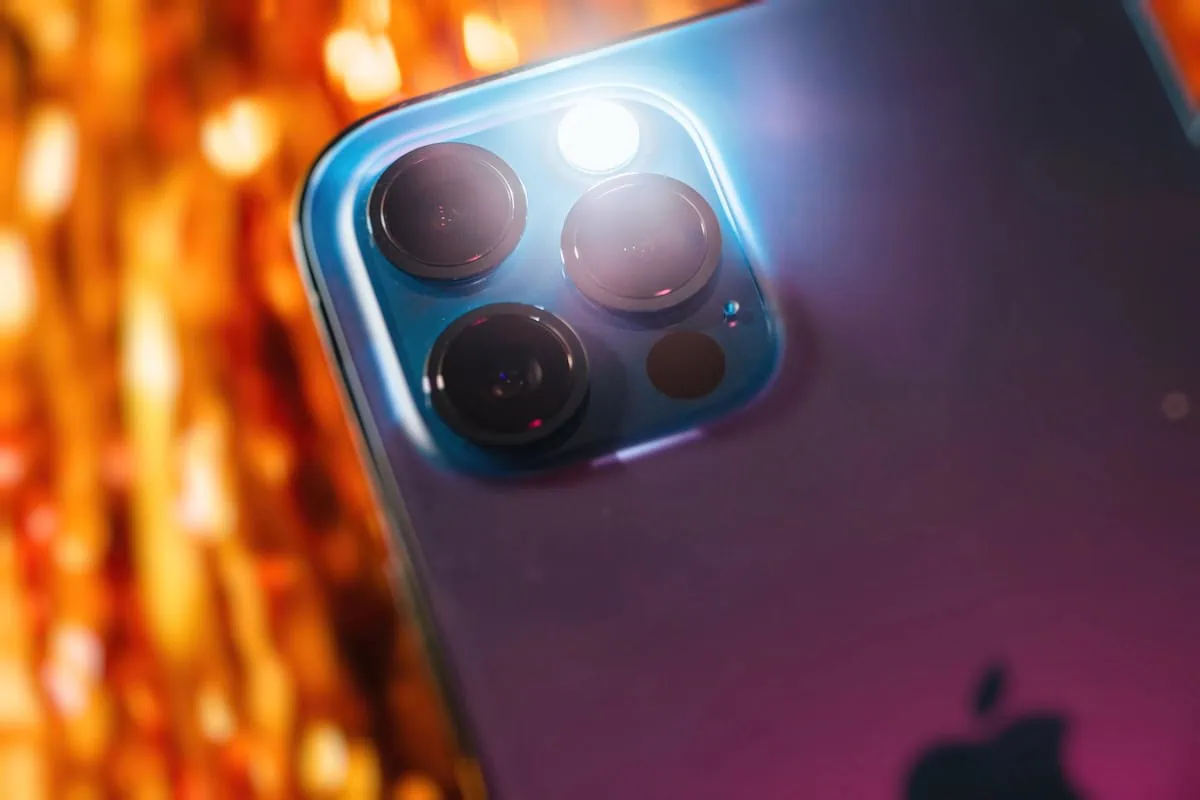
The Flash LED feature makes the phone’s LED flash for incoming calls, notifications, and alerts. This makes it obvious your phone wants your attention, even in loud environments. You can enable it with the following steps:
- Open Settings.
- Tap Accessibility.
- Scroll down and tap Audio & Visual.
- Scroll to the bottom and tap Flash for Alerts.
- Toggle Flash for Alerts to the On position. On that screen, you can choose whether you want it to flash when unlocked and whether you want it to flash in Silent Mode.
Related: 5 Critical ‘Last-Mile’ Steps Before Retirement
6. Use Voice Control
For a hands-free phone experience, you can enable Voice Control. This allows you to use your voice to tap, type, and more. Note: this feature requires iOS 13 or later. To turn on Voice control, you do the following:
- Open Settings.
- Tap Accessibility.
- Scroll down and select Voice Control.
- Tap Set Up Voice Control. A download will start. After the download is complete, a microphone icon will show in the status bar to indicate when Voice Control is and isn’t listening.
You can learn more about Voice Control on Apple’s website.
Related: 5 Things Retirees Can Do With Their Cars
7. Enable Find My iPhone
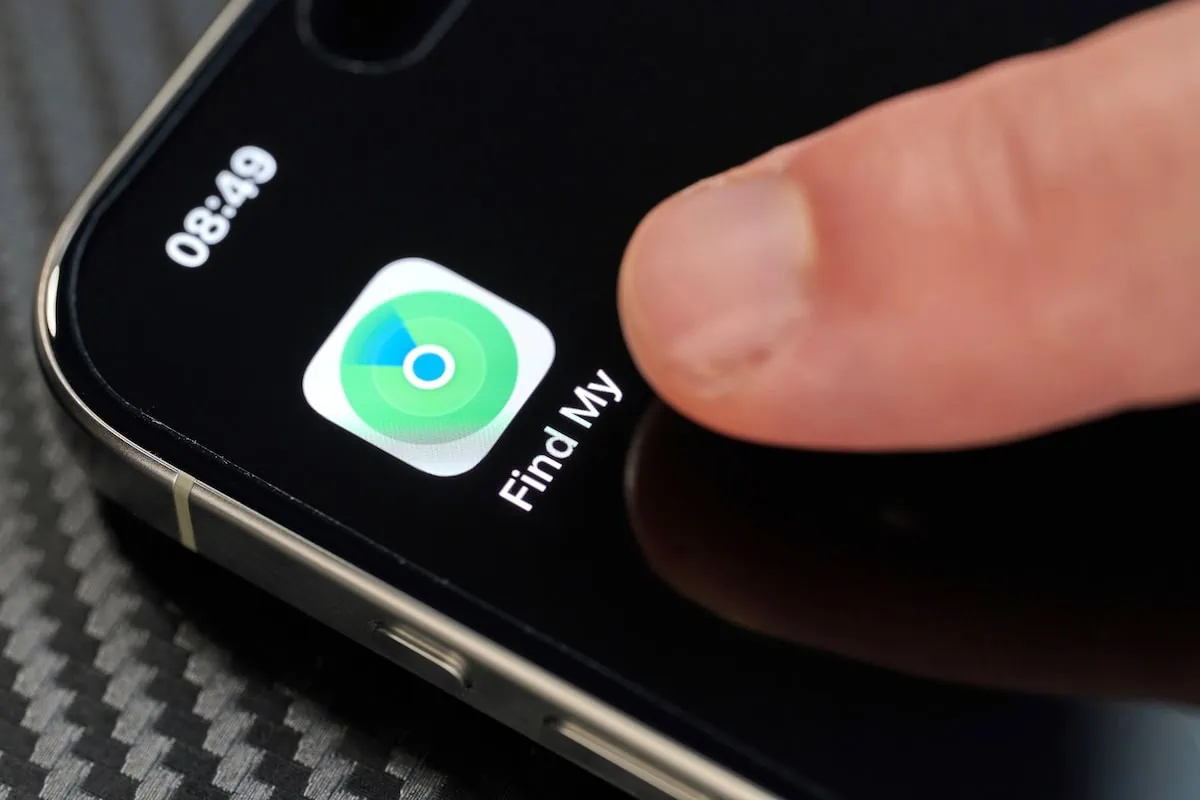
Are you worried about your phone getting lost or being stolen? You can put those fears to rest with the Find My iPhone feature. You can enable it in five easy steps.
- Open Settings.
- Tap your name.
- Tap Find My.
- Tap Find My iPhone.
- Toggle Find My iPhone, Find My network, and Send Last Location on, if they aren’t already.
You can learn more about how to locate a missing device on Apple’s website.
Related: 14 Interesting Millennial Retirement Statistics
Featured Financial Products
8. Enable Assistive Access
If you feel like there’s an app for just about everything these days … you’re not wrong. And if you’re downloading all those apps, it could be overwhelming to find the app you actually need when you need it.
For a simplified experience, you can enable Assistive Access, which gives larger text labels and high-contrast buttons to the features you likely use most, such as Calls, Messages, Camera, Photos, and Music. To set it up, follow these steps:
- Open Settings.
- Tap Accessibility.
- Scroll down and tap Assistive Access.
- Tap Set Up Assistive Access.
- Tap Continue.
- Select Rows or Grid and tap Continue.
- Select the apps you want to be available by tapping the plus icons next to their names.
- Tap Continue and set a passcode you can easily remember. It will be required to exit Assistive Access. You can set up a Recovery Apple ID in case the passcode is forgotten.
- Tap Start Using Assistive Access and enter the passcode you just created to activate it.
If you decide you no longer want Assistive Access on, you can exit it by triple-clicking the side button and entering that passcode.
Assistive Access is only available for iPhones running iOS 17 or higher.
Related: 10 Technologies That Are Somehow Still Thriving
Do you want to get serious about saving and planning for retirement? Sign up for Retire With Riley, Young and the Invested’s free retirement planning newsletter.
9. Enable Medical ID
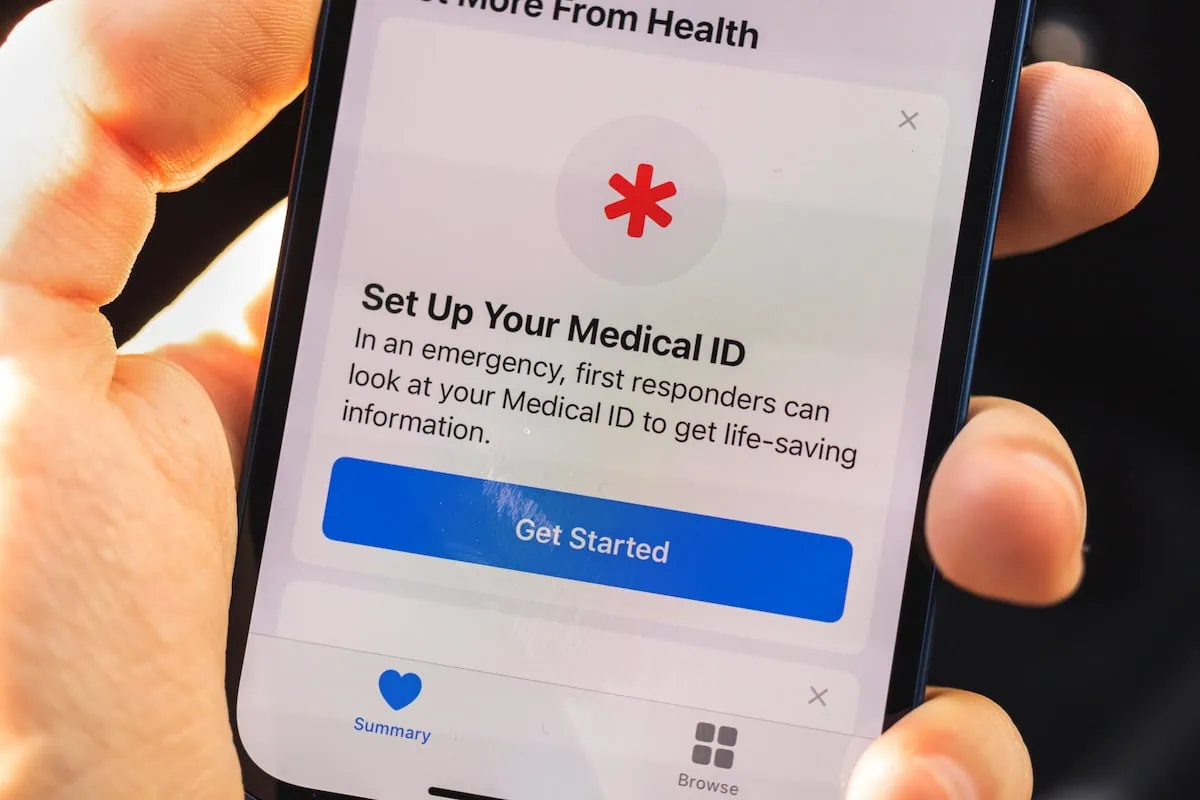
You never know when a medical emergency could strike. In the event you have a sudden health issue, you likely want first responders and health care workers to be able to quickly access your essential medical information, such as your blood type, any allergies, and emergency contacts.
Apple’s Medical ID allows them to do so without unlocking your iPhone, which is necessary if you are unconscious or otherwise unable to unlock it.
Take the following steps to set up Medical ID:
- Open Health.
- Tap Review Medical ID Access.
- Tap Continue.
- Add any information you wish to make available.
- Tap Next.
- You will be asked if you want to share Medical ID when Connecting Emergency Services and you can choose Share Medical ID information or Don’t Share.
- You will be asked if you want to share your Medical ID even if the device is locked. Toggle it to the On position.
- Click Next.
- Click Done.
Your phone will remind you to review your Medical ID in six months.
Related: 10 Senior Discounts for Restaurants + Grocery Stores
10. Enable Emergency SOS
In certain emergencies, how quickly help comes can make a significant difference. The Emergency SOS feature allows you to quickly and easily contact emergency services by pressing and holding the Side button and one of the Volume buttons or pressing the Side button five times.
Additionally, it can send a notification to the emergency contacts you added in Medical ID. It’s simple to enable this feature with the following steps:
- Open Settings.
- Scroll down and tap Emergency SOS.
- Toggle Call with Hold and Release and/or Call with 5 Button Presses to their On positions. There is also a toggle option for Call After Severe Crash.